
Two screenshots told me more about a stalled project than three standups that week. If you’re weighing employee screenshot and screen recording for a dispersed team, here’s the short answer: it can show work context, confirm progress, and reveal blockers, but it won’t measure deep thinking or creativity by itself.
You feel the tension. So do I. Monitoring is awkward. In 2026, the only way this works is to set clear goals, write a transparent policy, meet legal duties, and coach with the data rather than punish. You’ll keep trust if you right-size the capture rate, protect privacy with a clear “off switch,” and give people access to their own data.
This guide is education-first and tool-agnostic. I’ll explain what screenshots and recordings can (and can’t) tell you, share a 7-step rollout I use with remote teams, flag common mistakes, and compare tool categories. I’ll also point to an EU GDPR source so you can check consent and disclosure rules yourself.

What Screenshot Monitoring Actually Does for Remote Teams (and What It Doesn’t)
Screenshot monitoring is the act of capturing images of a worker’s screen at set times or during defined events. In plain terms, it shows you context: which app, which tab, which task. It shines when you need spot checks to see progress on tickets, QC creative work, or review steps in a process.
However, screenshots are not mind readers. They show the surface, not the thought. They can verify that a code editor was open at 2:15 p.m., but they won’t tell you if the person spent 20 minutes planning on paper or in a meeting window.
Capture modes and trade-offs
Moreover, tools can capture in three broad modes. Periodic captures take automatic screenshots every X minutes. Live screencasting lets you view a screen in real time during a support case or training call.
Continuous recording creates a video trail. Each mode trades storage and privacy for fidelity. As a rule, start with the lightest option that still meets your goal.
Specifically, automatic screenshots help you:
- Verify that work relates to the assigned task (e.g., Jira, Figma, IDE).
- Spot blockers in workflows (stuck installs, repeated error pop-ups).
- Review process steps for QA and handoffs.
Periodic vs. Live vs. Continuous
- Periodic captures (e.g., every 5–10 minutes): Best for most knowledge work. Lower storage load and less invasive. Pairs well with a Screenshot Recorder feature that tags app/URL.
- Live screencasting and recording: Best for support, training, or rare incident response. Use sparingly and with clear consent.
- Continuous recording: Niche use for high-risk roles. High privacy risk, large storage, and harder to review.
“Simplified the management of the entire workforce by 80% in terms of workforce, time, and effort.” — Ashwin Kumar, Chief Project Coordinator
On the myth side, a screenshot won’t “prove” productivity by itself. You still need time-on-task data, URL and app tracking, and results. As a result, you should pair screenshots with real-time activity tracking and a simple outcome check-in during 1:1s. And yes, include a Private time option so people can pause. That single control saves trust.
Finally, if you use employee screenshot and screen recording at all, log who can view the images, for how long, and why. In addition, give staff access to their own images to reduce fear and questions later.
Also Read!
Best Employee Screenshot Monitoring for Remote Teams in 2026
How to Set Up Screenshot Monitoring for Your Remote Team: A Step-by-Step Framework
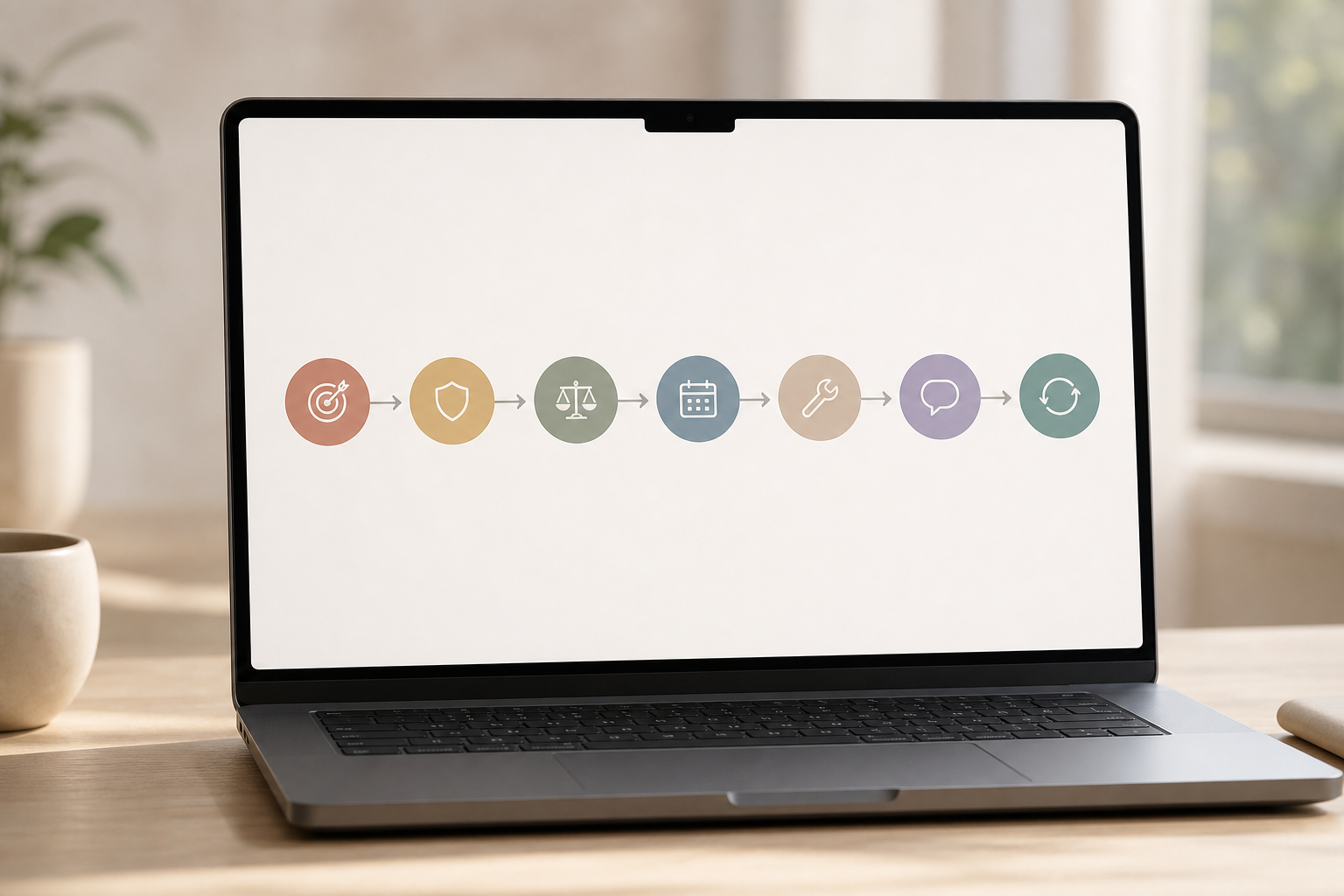
Rolling this out well matters more than picking the “perfect” tool. Here’s the 7-step path I use with distributed teams so employee screenshot and screen recording supports the work, not fear.
Goals and policy
First, define monitoring goals. Write one sentence per goal. For example: “Confirm design progress without micromanaging,” or “Audit process steps for a regulated task.” If you can’t state a goal, you don’t need a screenshot.
Second, draft a transparent policy. In two pages or less, cover: what gets captured (apps, URLs, Automatic screenshots), when (work hours only), how long you store it, who can view it (Multiple roles & permissions), and how workers can pause (Private time option). Add a contact for questions.
Third, check legal requirements by jurisdiction. In the EU and UK, consent and clear purpose limits apply under GDPR. Start with General Data Protection Regulation (GDPR), Official Journal. Then ask your counsel to confirm notice and retention rules by country or state. Therefore, bake consent into onboarding and policy sign-off.
Fourth, choose capture frequency and mode. Match the sensitivity of the task and the data. For design, 10-minute snapshots may be fine. For a regulated back-office task, a higher rate during that workflow may help audits. However, always add the Private time option and exclude known sensitive apps (payroll, personal email).
Tools and comms
Fifth, select a tool. Prioritize GDPR compliant settings, Data security & privacy protection (SSL, firewall, IP allowlist), and real-time dashboard views so you can sample rather than binge-review. In addition, look for an easy Screenshot Recorder, URL and app tracking, and role-based access.
Sixth, communicate to the team before rollout. Share the policy and walk through examples in a 30-minute call. For example, show a live screencasting and recording demo for support staff and a lighter periodic setup for designers. Importantly, invite feedback and adjust.
Seventh, review and adjust after 30 days. Audit how many screenshots you actually check. If you review less than 10% of captures, lower the rate. If a team flags stress from over-capture, widen the interval or narrow the scope. Therefore, treat this as an operations dial, not a one-time switch.
- Stealth/Un-stealth mode: Default to visible mode. If you must use stealth in incident response, document who approved it and why, and time-box it.
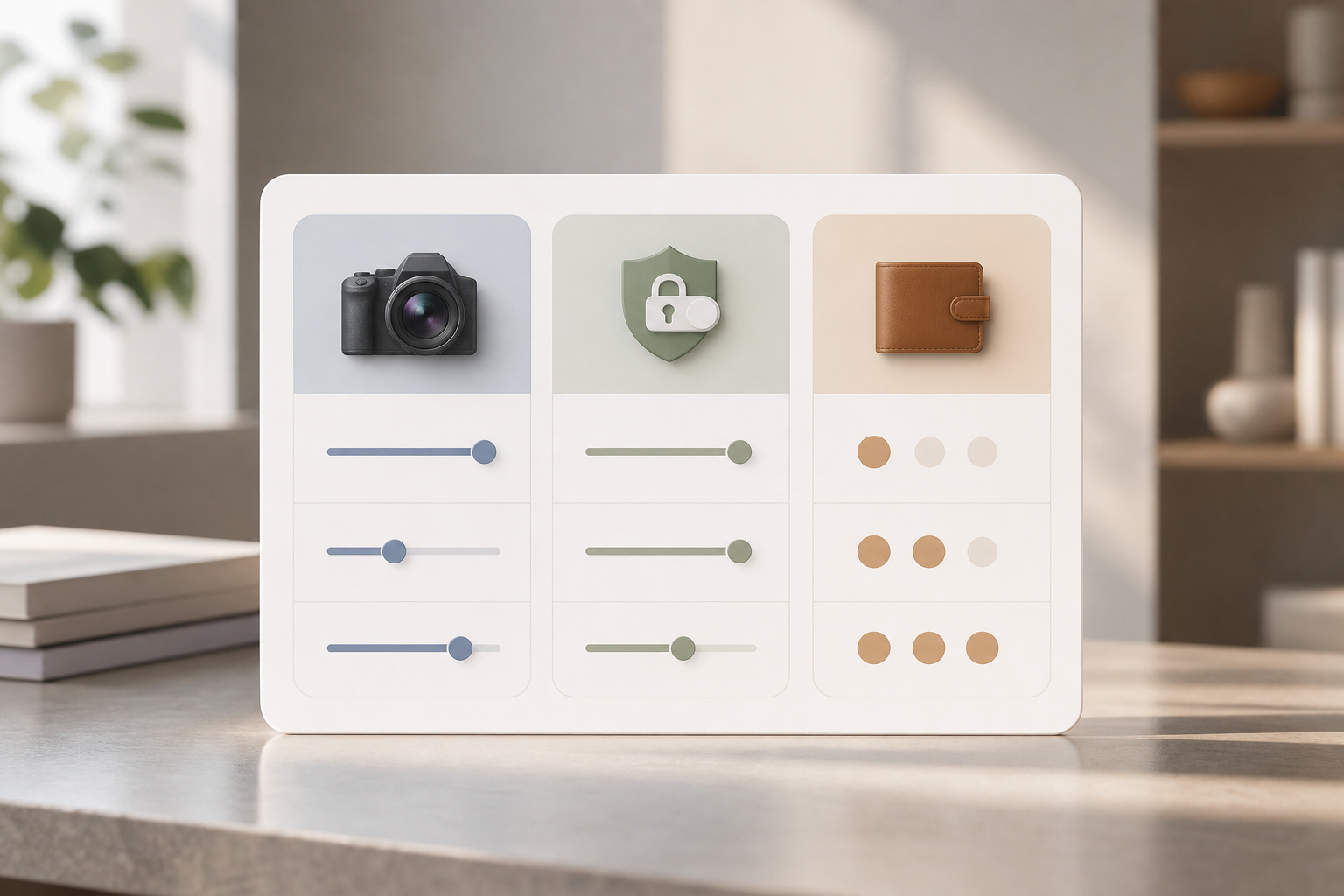
- Multiple roles & permissions: Limit image access to direct managers and HR. Log every access.
- Data security & privacy protection: Encrypt at rest and in transit. Set retention to the shortest period that still meets your goal.
As a practical note, place change logs and the policy in a shared drive. That way, when someone asks “Why is the rate at 10 minutes?”, you can point to the decision trail.
**Get instant setup, free for 15 days →
5 Mistakes Remote Managers Make With Screenshot Monitoring
You can do a lot right and still trip on these five. Use this as a pre-mortem before you switch on employee screenshot and screen recording for your team.
Avoid these pitfalls
First, deploying in stealth without disclosure. Even if your tool supports Stealth/Un-stealth mode, hidden rollouts trigger distrust that takes months to repair. Instead, disclose what you’ll capture, when, and why. Then, reserve stealth only for a documented incident window.
Second, capturing too frequently. A 1-minute interval sounds thorough, but it floods storage and spikes anxiety. As a result, managers stop reviewing, and workers feel watched, not supported. Start at 10–15 minutes. Reduce only if your review data shows a gap.
Third, ignoring local privacy laws. GDPR compliant isn’t a sticker; it’s a process. In the EU, purpose limitation and data minimization matter. In California, you have notice rules. Therefore, always run your policy past counsel and specify retention by jurisdiction.
Privacy and control gaps
Fourth, using screenshots as a stick. If your first move is to punish based on one image, you’ll kill trust. Instead, use captures for coaching. For example, “I saw three error dialogs in your screenshots, let’s fix the toolchain.
Fifth, not offering private-time exclusions. People need to check a bank site or a medical note. Without a Private time option, they’ll find workarounds. Add a pause button, document allowed uses, and show how to use it in onboarding.
- Always pair any capture with clear outcomes (tickets closed, PRs merged, SLAs met).
- Rotate reviews. For example, spot-check 10% of a team’s day, not every minute of every day.
- Share a monthly summary so staff can see how little you actually review, which lowers stress.
Also Read!
EmpMonitor vs Teramind for Small Businesses: Which Is Better for Insider Threat Monitoring?
Tools That Support Screenshot Monitoring for Distributed Teams
You have four broad choices. The right pick depends on how much context you need, how you protect privacy, and what you can pay. Here’s how I sort them in 2026, including where employee screenshot and screen recording fits.
- Dedicated monitoring platforms: Deep features like Automatic screenshots, URL and app tracking, Real-time dashboard views, and Productivity calculation. Good for IT, finance, and call centers.
- Time-tracking apps with screenshots: Lighter controls with timers, activity rates, and periodic images. Good for agencies and contractors.
- Project management tools with captures: Few platforms add light capture for proof-of-work. Good for creative teams that need occasional context.
- Analytics-first user behavior tools: Strong for audits and security; screenshots are a side feature.
| Category | Capture Controls | Privacy Controls | Notable Fit | Typical Pricing |
|---|---|---|---|---|
| Dedicated monitoring | Configurable intervals, live screencasting | Roles, exclusions, Private time option | Regulated back office, support | From ~$9–$15/user/mo |
| Time-tracking + screenshots | 5–10 min intervals | Basic approvals, project scopes | Agencies, contractors | From ~$7–$12/user/mo |
| PM with captures | Task-bound snapshots | Per-project scope | Creative, marketing | Bundled |
| Analytics-first | Event-based recording | Strong audit trails | Security teams | Tiered/enterprise |
As one option in the “dedicated” group, EmpMonitor offers Automatic screenshots, URL and app tracking, a Real-time dashboard, and role-based access. It’s GDPR compliant and includes Data security & privacy protection controls like SSL, firewall rules, and IP allowlisting. Bronze pricing starts at $11/user/month paid yearly, and a Free 15-day trial is available. It’s trusted by 15,000+ companies across 100+ countries and tracks over 500,000 employees, which speaks to scale in real deployments.
“EmpMonitor’s advanced analytics offer profound insights into employee performance, driving operational efficiency improvements that have truly transformed our business.” — James George, Accountant
For balance, you can also look at Hubstaff, Time Doctor, and ActivTrak (names only, no links). Compare them on three axes: capture frequency you can dial per role, privacy controls like a Private time option, and whether managers can review in minutes, not hours.
As you compare, write down your “musts” and “nice-to-haves.” Then, run a 2-week pilot with five people and a clear exit survey. You’ll learn more in 10 days of real work than in 10 hours of demos.
What to Do This Week: Your Screenshot Monitoring Action Plan
You don’t need a quarter to do this well. In one week, you can test the fit of employee screenshot and screen recording without burning trust.
- Day 1: Audit visibility gaps. List where managers need proof of progress or process adherence. For example: “Refund workflow misses a QC step,” or “Design review waits on unclear handoffs.” Circle no more than three use cases.
- Day 2: Draft a one-page policy. Use this outline: purpose, scope (apps/URLs), capture mode (interval or live), Private time option, access (Multiple roles & permissions), retention, and an email for issues. Keep it to 400–500 words.
- Day 3: Legal check. Send the draft to counsel with the GDPR citation you read (GDPR, Official Journal) and your use cases. Ask for retention and notice guidance per country.
- Day 4: Configure a pilot tool. Set a 10-minute interval, exclude personal apps, enable the Private time option, and add reviewers with least privilege.
- Day 5: Brief a small pilot team (3–5 people). Show a live screencasting and recording example in the training call but confirm you’ll start with periodic images only.
- Day 6–7: Run it. Managers review 10% of captures for coaching, not policing. Note review time per person to catch overload.
At the end of the week, send a 5-question survey: Did the screenshots help you spot blockers? Did the Private time option feel safe? How many images did you actually review? What would you change? Would you keep the pilot on?
If you decide to continue, expand the pilot to a second team and plan a 30-day review. Since a Free 15-day trial is available, the clock and cost won’t pressure your decision.
**Try the 15‑day pilot, no credit card →
Key Takeaways
- Use screenshots to confirm context and coach; don’t treat them as a productivity score.
- Start with periodic captures, a Private time option, and clear roles and retention.
- Keep it GDPR compliant: state your purpose, minimize data, and get consent by region.
- Compare tools on capture control, privacy controls, and review speed — not hype.
- Pilot with five users for 10–15 days, then adjust your interval and scope.