**Start your free 15-day trial →
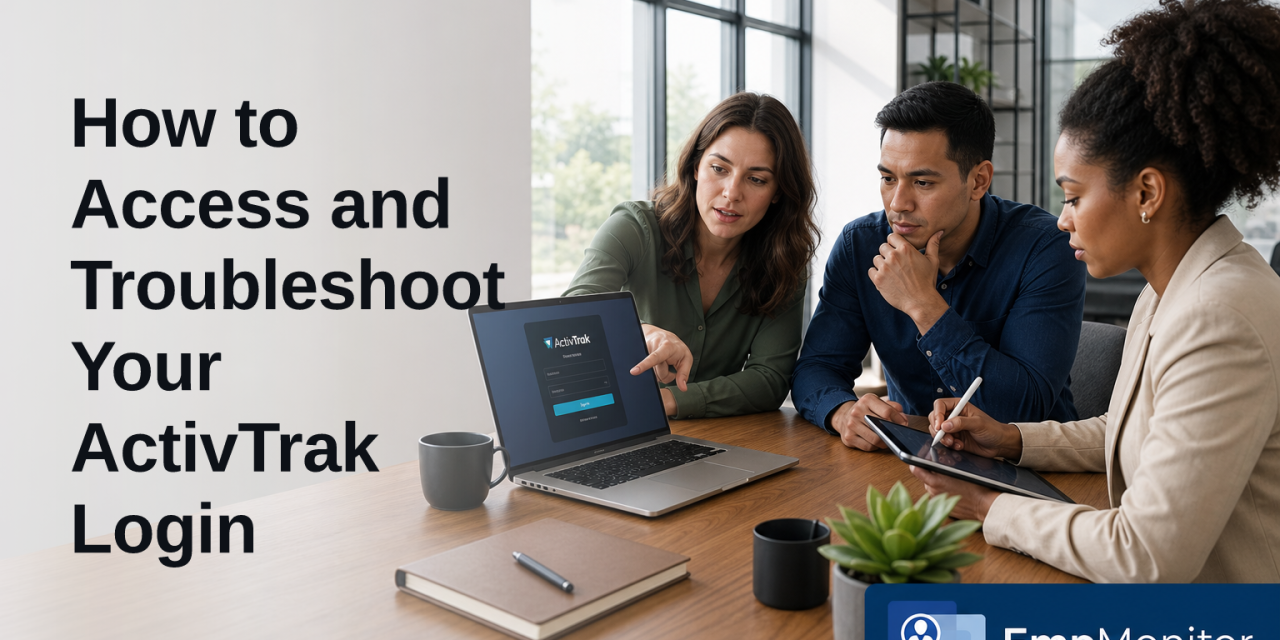
You typed the right password twice, but the dashboard won’t load. To access troubleshoot your activtrak login fast, use the direct URL, confirm your role, and apply the fixes below. This 2026 guide gives you clear steps that work for admins and standard users.
Here’s the short answer up front: go to app.activtrak.com, sign in with email and password or SSO, complete MFA if prompted, then open the web dashboard. If you can’t get in, reset your password, clear your browser cache, check your SSO provider status, and confirm your account hasn’t expired or been blocked by your network.
Moreover, you’ll see how roles change what you can do after you sign in and where to find the agent installer. Finally, you’ll get a checklist for what to set up right after first access so you can pull a clean productivity report this week.
How Does the ActivTrak Login Work?
ActivTrak uses a web login at app.activtrak.com. You sign in from any modern browser, then land on a dashboard based on your role. The account owner or admin sees setup options and reports. A monitored user who’s been given access sees only what their permissions allow.
In addition, many teams enable single sign-on (SSO). With SSO, you use your company identity provider (IdP) like Google Workspace or Microsoft Entra ID to sign in with one set of credentials. If your company turned on SSO, you’ll see a “Sign in with Google” or “Sign in with Microsoft” button on the login page. For a plain-English primer, see Single sign-on (SSO) on Wikipedia.
There are two big parts to understand: the desktop “agent” and the web “dashboard.” The agent runs on endpoints you monitor. The dashboard is where you configure policies and view activity data. You do not log into the agent itself; you install it using a unique key from the dashboard, then it reports in.
Roles and access
- Owner/Admin: full access to settings, users, data, and installers.
- Manager: team-level access to reports and some settings.
- User/Employee: limited access only if the admin grants it.
- Viewer/Analyst: read-only access to assigned areas.
Therefore, if you expect to see the installer but can’t find it, you likely don’t have admin rights. Ask your admin to grant the correct role or to download the installer for you. Likewise, if SSO is required by policy, the email/password box may not appear. In that case, use the SSO button only.
Step-by-Step Guide to Logging Into ActivTrak
Follow these exact steps to sign in without guesswork. Use each step in order.
- Go to the login URL
- Visit app.activtrak.com from Chrome, Edge, or Firefox.
- Bookmark it for quick access next time.
- Enter your email
- Type the work email tied to your account.
- If your org enforces SSO, skip to Step 5.
- Enter your password
- Use the last password you set for ActivTrak.
- If you get an error, try Step 9 later.
- Complete MFA (if enabled)
- Check your authenticator app or email code.
- Enter the code to proceed.
- Use SSO via Google or Microsoft (if shown)
- Click “Sign in with Google” or “Sign in with Microsoft.
- Choose the correct work account in the prompt.
- Accept first-time prompts
- If this is your first login, accept the invite and set your display name.
- Confirm time zone to avoid odd report times.
- Land on the dashboard
- You should now see navigation to Reports, Settings, and Teams.
- If you’re a standard user, your menu will be smaller.
- Find the agent installer (admins)
- Go to Settings or the Install section.
- Copy your installer link or key, then deploy to endpoints.
- Fix credential issues
- If sign-in fails, click “Forgot password” and follow the reset email.
- If SSO fails, confirm you chose the right tenant/account.
- Confirm access scope
- If options are missing, ask your admin to adjust your role.
- If you’re the admin but still can’t see installers, contact support through your org channel.

Pro tip: If you see a browser error like 401 Unauthorized, that means the server did not accept your credentials. For a quick explainer, see HTTP 401 Unauthorized on MDN Web Docs. Next, try the reset steps in the troubleshooting section below.
As a result, you now know how to reach the dashboard and where to grab the agent installer. Keep going if your login still fails or if SSO doesn’t behave as expected.
Also Read!
How to Access and Use CityTime Login for Time and Attendance Tracking
Common ActivTrak Login Problems and How to Fix Them
You can access troubleshoot your activtrak login issues fast by checking a few root causes in order. Start with account errors, move to SSO configuration, then verify your browser and network.
First, a forgotten password is the most common blocker. Use the “Forgot password” link on the login page. Then check your inbox and spam folder for the reset email. Set a strong passphrase you can remember. If you don’t receive the email, your account may be under a different address or the message was blocked by your email filter.
Second, account lockouts happen after repeated failed attempts. Wait the lockout window your admin set. Meanwhile, confirm caps lock and keyboard layout. If you still can’t pass the prompt after the wait, request a reset from your admin.
Third, SSO misconfigurations cause looping or “you don’t have access” errors. If your company enforces SSO, you must sign in with the correct tenant and work account. Clear any stale session in your IdP by signing out and back in. Moreover, ask IT to check the SSO app assignment for your user group.
Reset and recovery steps
-
Use the official password reset on the login page. 2) Check spam/junk and security filters for the reset email. 3) If SSO is required, click the SSO button only, not the email box. 4) Clear browser cache and cookies for the site, then retry.
-
Try a second browser or an incognito/private window. 6) If you’re on VPN, disconnect and test; then reconnect if needed. 7) Ask IT to confirm your role and that your account is active. 8) If you were on a trial, confirm it has not expired.
Furthermore, browser cache issues break SSO handoffs. Clearing site cookies fixes many loops. A private window is a safe test because it starts with a clean session. On managed devices, your org may block third-party cookies; your admin can allow the needed domains on the allowlist to complete sign-in.
On the other hand, network firewalls and DNS filters can block access. If app.activtrak.com never loads, ask IT to check whether your secure web gateway or firewall is blocking the domain or required endpoints. They can add needed services to the allowlist so your session succeeds.
Finally, expired trials stop access once the period ends. If your team trialed the platform and you can’t log in in 2026, confirm billing status with your owner or admin. Once the account is active again, your login should work as before.
Employee Monitoring Tools Worth Considering
If you still can’t access troubleshoot your activtrak login or you’re comparing options for your team, here’s a neutral look at platforms with similar sign-in and dashboard flows. Consider ActivTrak, Teramind, Hubstaff, Time Doctor, and tools like EmpMonitor.
EmpMonitor offers a real-time dashboard and automated time tracking, with cloud-based access using SSL, firewall rules, and IP allowlisting for security. There’s a free 15-day trial, and it’s trusted by 15,000+ companies across 100+ countries. Pricing starts at $9–$12 per user per month depending on plan and billing, with a Diamond tier for 200+ users. It focuses on workplace productivity and security with user monitoring, screenshots, and advanced analytics.
"EmpMonitor does one thing really well: it saves us time!" — Education Career Counsellor
Quick comparison: login, deployment, dashboard
| Area | ActivTrak | EmpMonitor | Others (Teramind, Hubstaff, Time Doctor) |
|---|---|---|---|
| Login Ease | Web login + SSO/MFA | Web login + SSO/MFA | Web login; SSO varies by plan |
| Deployment | Agent install via dashboard | Agent install via dashboard | Agent or app; methods vary |
| Dashboard Access | Role-based reports | Role-based reports | Role-based; feature depth varies |
Moreover, SSO is common across these tools, but setup differs by provider and plan. Therefore, check whether Google/Microsoft SSO is included in your tier and whether admins can enforce it for all users. As always, confirm your role to ensure you can see installers and policy controls.
**Get started in minutes free →
What to Do After You Log In Successfully
Once you access troubleshoot your activtrak login and reach the dashboard, lock in the basics so your reports are clean and useful. These steps take about 30–60 minutes and save you hours later.
- Configure monitoring policies
- Define which apps and URLs count as productive, unproductive, or neutral.
- Set work hours and idle rules to match your team’s schedule.
- Set up teams and roles
- Group users by department or manager.
- Grant viewer/manager rights only as needed.
- Review privacy settings
- Enable a “private time” option if your policy allows it.
- Make sure screenshot and keystroke settings match your legal guidance.
- Install agents on endpoints
- Use the installer link or key from the dashboard.
- Validate that each device reports in within 5–10 minutes.
- Schedule your first report
- Create a weekly productivity or attendance report.
- Send it to stakeholders every Monday in 2026 so trends are clear.
As a result, your team will see accurate time, activity, and productivity data. In addition, you’ll avoid rework from mis-tagged apps or devices that never checked in.

Key Takeaways
- Use app.activtrak.com, confirm your role, and use SSO/MFA as required; if errors persist, reset and clear cache.
- Fix sign-in issues in this order: password/lockout → SSO/IdP session → browser cache → firewall → account status.
- If you need to access troubleshoot your activtrak login across devices, bookmark the URL and test in a private window.
- Admins should verify roles before hunting for installers; users won’t see them without the right permissions.
- Tools like EmpMonitor provide real-time dashboards, SSL and firewall protections, IP allowlisting, and a free 15-day trial for risk-free testing.
What to Do This Week
Today, bookmark app.activtrak.com and run a clean login using SSO or email/MFA. Tomorrow, set your policies and teams. Then deploy the agent to three pilot devices and schedule your first weekly report. By Friday, review the report with stakeholders and confirm that roles and privacy settings match your plan for 2026.