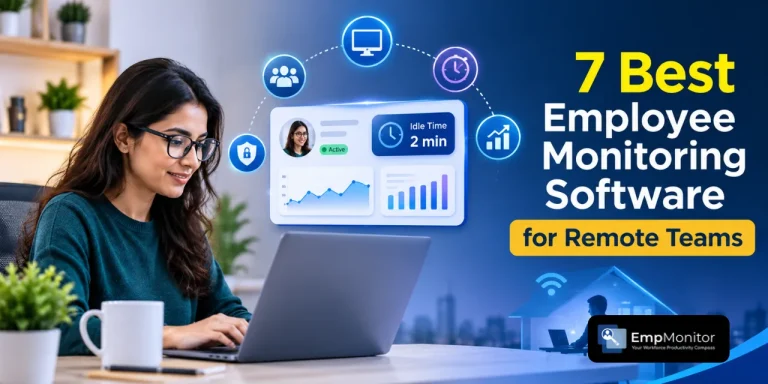
Remote work has made tracked time a core business record. Payroll, client invoices, and project budgets all depend on how accurately a team’s working hours are captured. And idle time sits at the center of that accuracy. It is usually defined as a stretch with no keyboard or mouse input, often set between 3 and 10 minutes. Platforms differ in how they detect it and in what they do with the flagged minutes.
In this guide, we have picked seven employee monitoring and time-tracking tools to track your employees’ unusual idle time. You will also see how each tool handles screenshots, reports, and pricing. Read on to find the one that fits your team size and budget.
Quick Answer
Apploye’s remote employee monitoring software is the best choice if you want accurate idle time handling for remote teams. Its auto-discard setting lets an admin deduct idle minutes from tracked hours automatically, so payroll and client invoices reflect active work only. It also offers screenshots, activity levels, app and URL tracking, and GPS features at a low per-user price.
EmpMonitor is another strong option for teams that want deeper productivity analytics. Hubstaff suits teams that value integrations, Time Doctor suits detailed productivity reports, ActivTrak suits workforce analytics, Teramind suits security-focused organizations, and Insightful suits larger teams that want behavior insights. Your best pick depends on team size, budget, and how much detail you need.
How to Choose the Best Employee Monitoring Software for Remote Teams
A good remote work monitoring software fits how your team works. Start with your goal. Payroll accuracy, client billing, productivity coaching, and security each call for different features, so write down your main need first.
Here are the factors that matter most when you pick a tool. Idle Time Detection and Handling
Check how the tool defines idle time and whether you can change the threshold. Then look at what happens next. Some tools only flag idle minutes. Others let you keep, review, or remove them automatically. Automatic removal saves hours of manual timesheet editing.
Screenshot Controls
If you want employee monitoring software with screenshots, look at the settings. Useful options include random capture intervals, blur modes, and the ability to delete a capture. These controls keep the process fair and respectful of your team’s privacy.
Transparency and Employee Trust
Choose a tool that shows employees what is being recorded. A visible tracker, clear policies, and employee access to their own data build trust. Teams that understand the rules tend to accept tracking more easily.
Reporting and Billing Features
Look for timesheets, activity reports, and invoicing or payroll exports. These features turn raw tracked time into usable records. They matter most if you bill clients by the hour.
Integrations and Platform Support
Make sure the tool works on your team’s devices, including Windows, macOS, Linux, and mobile. Check for integrations with project tools such as Asana, Trello, and Jira, and with accounting software.
Pricing and Scalability
Compare per-user costs against what you actually need. Watch for minimum seat counts, annual billing requirements, and feature limits on lower plans. A cheaper plan with the features you need beats an expensive one you only partly use.
Table: Employee Monitoring Software List at a Glance
| Tool | Idle Time
Tracking |
Screenshots | Best For | Starting Price (approx.) |
| EmpMonitor | Yes | Yes | Productivit y analytics | About
$5/user/month |
| Apploye | Yes, with
auto-discard |
Yes | Accurate
billing and payroll |
Free plan for up to 10 users; paid from
$4.50/user/month (billed annually) |
| Hubstaff | Yes | Yes | Integration s and field teams | About
$5–7/user/month |
| Time Doctor | Yes | Yes | Detailed
productivit y reports |
About
$6–7/user/month |
| ActivTrak | Yes | Yes (higher plans) | Workforce analytics | Free plan; paid from about
$10/user/month |
| Teramind | Yes | Yes | Security
and complianc e |
About
$15/user/month |
| Insightful | Yes | Yes | Larger
teams |
About
$6–7/user/month |
Best Employee Monitoring Software for Remote Teams With Idle Time Tracking
This employee monitoring software list covers seven tools. Each one detects idle time in some form, and each handles screenshots, reports, and pricing differently.
Here’s how they detect idle time and ensure your paid hours aren’t wasted.
- EmpMonitor
EmpMonitor is a workforce analytics platform built to show how remote and hybrid teams spend their working hours. It records active and idle time, tracks apps and websites, and turns the data into productivity reports. Managers can see patterns across individuals, teams, and departments in one dashboard.
For idle time, EmpMonitor flags periods without activity and shows them in reports. You can review idle trends and spot days when a team’s active time drops. This helps you coach people and adjust workloads using real data.
Key Features
- Idle and active time tracking
- Screenshots at set intervals
- App and website usage tracking
- Productivity classification of apps and sites
- Attendance and shift tracking
- Detailed reports by user, team, and department ● Alerts for unusual activity
- Options for cloud and on-premises setups
Pricing
EmpMonitor’s paid plans start at $4.66 per user per month, with higher tiers adding more features. A free trial is usually available. Check the vendor’s pricing page for current plans.
Pros and Cons
| Pros | Cons |
| Rich productivity analytics | Can feel feature-heavy for small teams |
| Flexible deployment
options |
Setup takes more time than simpler tools |
| Strong reporting by team and department |
Best For
EmpMonitor is best for mid-sized and larger remote teams that want detailed productivity analytics and flexible deployment.
- Apploye
Apploye is a time tracking and employee monitoring tool made for remote and hybrid teams. It combines time tracking, screenshots, activity levels, app and URL tracking, timesheets, and invoicing in one platform. That mix suits teams that bill clients by the hour or pay staff by tracked time.
For idle time-tracking particularly, the tracker detects inactivity, and admins can switch on auto discard. When auto discard is on, idle time an employee spends is deducted automatically
from tracked work hours. Billing and payroll then reflect only the time actually worked.
This saves managers from reviewing timesheets line by line. It also keeps clients confident that invoices match real work. Admins keep control, since they decide whether auto-discard is on and which idle threshold applies.
Key Features
- Idle time detection with an auto-discard option ● Screenshots with configurable intervals
- Activity levels based on keyboard and mouse use ● App and URL tracking
- Project and task time tracking
- Timesheets, approvals, and reports
- Invoicing and payroll support
- Integrations with tools such as Asana, Trello, Jira, and QuickBooks
- Apps for Windows, macOS, Linux, and mobile
Pricing
Apploye offers a free Starter plan for up to 10 users, with limited screenshots and app tracking. Paid plans are priced per user per month:
| Plan | Billed annually |
| Elite | $4.50 |
| Power | $8 |
| Enterprise | Custom pricing |
Pros and Cons
| Pros
Auto-discard removes idle time from billable hours |
Cons
Fewer deep security features than Teramind |
| Affordable per-user pricing | Stealth monitoring is a paid add-on |
Covers tracking, screenshots, GPS, and invoicing in one tool Simple setup for mid-sized to large teams
Best For
Some advanced options sit on higher plans. Apploye is best for agencies, BPOs, freelancers’ clients, and remote teams that bill by the hour and need idle time removed from tracked hours automatically.
- Hubstaff
Hubstaff is a well-known time tracking and workforce management platform that offers time tracking, screenshots, activity levels, GPS, payroll, and a large integration library. Many remote and field teams use it to manage projects and pay staff from tracked time.
For idle time, Hubstaff detects inactivity and lets you set rules for what happens next. The tracker can prompt employees to keep or discard idle minutes when they return. Managers can also review idle time in reports and adjust timesheets where needed.
Pricing starts at around $5 to $25 per user per month, depending on the plan, with a free trial offered.
Pros include a strong integration list, solid payroll tools, and mature mobile apps. Cons include higher costs as you add features and a settings menu that can take time to learn.
Best for: teams that want deep integrations, payroll tools, and field tracking in one platform.
- Time Doctor
Time Doctor is a productivity and time tracking tool with a focus on detailed reporting. It records time by task, tracks apps and websites, and takes screenshots. Its reports show how work is spread across projects and how focused each person is.
Time Doctor flags idle time and can prompt users to confirm what they were doing during a gap. It also offers distraction alerts that nudge people back to work. Managers get daily and weekly reports that highlight trends in focus and activity.
Pricing starts at roughly $6 to $7 per user per month, depending on plan and billing cycle. Pros include rich reports, focus alerts, and good integrations. Cons include a price that adds up for larger teams and prompts that some employees find frequent.
Best for: teams that want detailed productivity reports and focus coaching.
- ActivTrak
ActivTrak is a workforce analytics platform that focuses on understanding work patterns. It records active and passive time, app and website use, and productivity trends across teams. Leaders use it to see workload balance, focus time, and how teams adapt to remote work.
ActivTrak tracks idle and passive time and presents it in clear dashboards. It is built more for insight than for billing, so it does not center on timesheets or invoices. Screenshots are available on higher-tier plans.
ActivTrak has a free plan with limits, and paid plans start at around $10 per user per month. Pros include strong analytics and an approachable interface. Cons include fewer billing features and screenshots reserved for higher tiers.
Best for: organizations that want workforce insight and productivity trends rather than hourly billing.
- Teramind
Teramind is a monitoring and insider threat platform with deep activity tracking. It records app use, web use, file activity, and more, with detailed behavior rules. Security and compliance teams in regulated industries often choose it.
For idle time, Teramind tracks active and idle periods and ties them to behavior policies. It can trigger alerts and automated actions when activity looks unusual. Screen recording and screenshots add context to what happened during a session.
Pricing starts at around $15 per user per month, and some features cost extra. Pros include strong security controls and customizable rules. Cons include higher cost, a longer setup process, and more depth than most small teams need.
Best for: security-focused and regulated organizations that need detailed activity records and policy rules.
- Insightful
Insightful is a workforce analytics and time tracking tool aimed at teams of many sizes. It offers time tracking, activity data, app and website tracking, and screenshots. Its dashboards help managers see productivity, workload, and utilization across teams.
Insightful records idle time and shows it next to active time in reports. Managers can use that data to find overloaded teams and shifts in work habits. It also supports automatic and manual time tracking options to suit different working styles.
Pricing starts at roughly $6 to $7 per user per month, with higher tiers for advanced features. Pros include clear dashboards and flexible tracking modes. Cons include fewer billing features than some rivals and extra cost for advanced analytics.
Best for: larger teams that want workforce analytics and utilization insight.
FAQs
What is idle time in employee monitoring software?
Idle time is a period when the tracker detects no keyboard or mouse activity. Most tools let admins set the threshold, often between 3 and 10 minutes. After that point, the tracker marks the time as idle.
How does Apploye’s auto discard work?
When an admin turns on auto discard, Apploye removes idle time from the employee’s tracked hours automatically. The employee’s work hours, billing, and payroll then reflect only active time, with no manual timesheet edits needed.
Is employee monitoring software with screenshots legal?
In many regions, yes, but rules vary by country and state. Employers usually need to tell employees what is tracked and why. Check local labor and privacy laws, and put your tracking policy in writing.
Which employee monitoring software is best for small remote teams?
Apploye and Empmonitor are two strong choices for small teams because of their low per-user price, simple setup, and built-in idle time handling. Hubstaff is another good option if you need many integrations.
Can employees see what the tracker records?
In most tools, yes. Employees can usually view their own tracked time, activity levels, and screenshots. Sharing this data openly builds trust and helps people understand how their time is measured.
How do you set the right idle time threshold?
Start with a threshold of 5 to 10 minutes for most roles. Shorten it for data entry or support work, and lengthen it for roles with reading, calls, or design tasks. Review the results after a few weeks and adjust.
Final Words
Idle time tracking helps remote teams keep payroll and billing honest. The best tool depends on your goal. EmpMonitor offers deep analytics, Hubstaff offers integrations, and Time Doctor offers detailed reports, ActivTrak offers insight, and Teramind offers security depth.
For most remote teams that bill by the hour, Apploye is one of the strongest fits. Its auto-discard setting removes idle minutes from tracked hours, and its screenshots, activity levels, and low pricing cover the other core needs. Start a free trial, set your idle threshold, and share clear tracking rules with your team before rollout.