


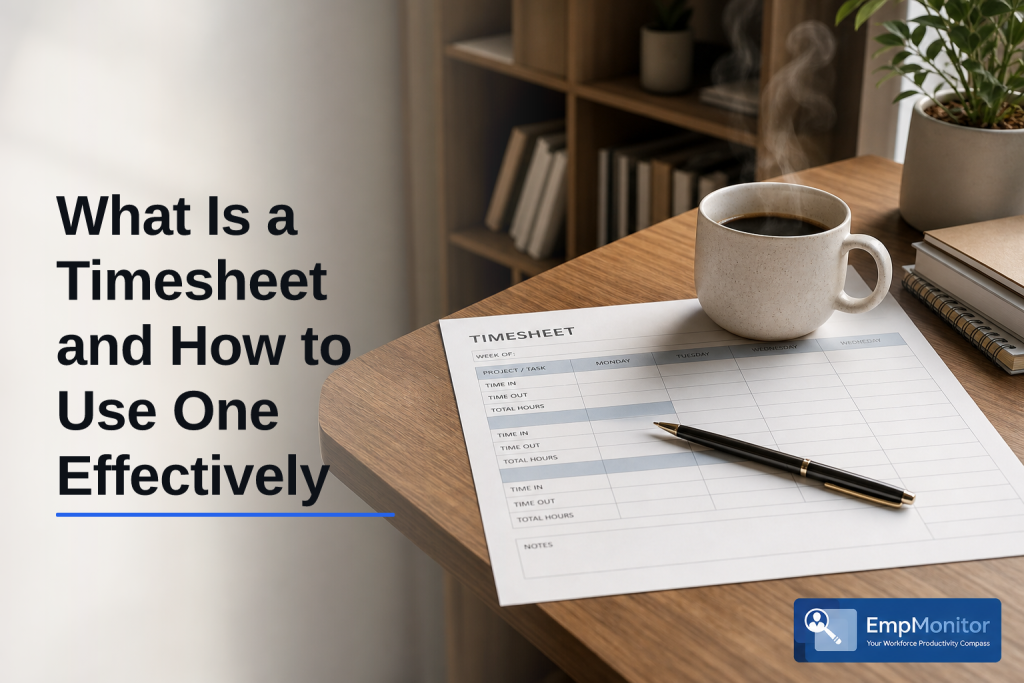
On Friday at 5:15 p.m., Maya guessed her team’s hours and payroll missed by $842. You can avoid that with a clear handle on timesheets and, yes, timesheet use one effectively from day one.
A timesheet is a simple record of who worked, on what, and for how long. You use it to pay people, bill clients, and see which projects make or lose money. In this 2026 guide, you’ll get practical steps, real examples, and clear fixes for common errors. You’ll also learn “timesheet use one effectively” in plain language, without jargon.
Put bluntly, time is cash. Bad records skew payroll, underbill clients, and blur where projects drag. Good records do the opposite. They give you clean hours, fast approvals, and data you can trust.


What Is a Timesheet and Why Does It Matter?
A timesheet tracks hours by person, date, task, and project. At its core, it answers three questions: Who worked? For how long?
On what? That’s it. Yet those lines control payroll, billing, and project costs.
- Payroll: Hours roll into gross pay, overtime, and paid leave.
- Billing: Billable hours become client invoices and revenue.
- Project costing: Logged time shows real labor costs vs. budget.
Historically, teams used paper cards and punch clocks. In fact, mechanical time clocks became common in factories in the early 1900s. For context, see the background on the time clock.
Today, you’ll see paper, spreadsheets, and software. However, digital tools now add automated time tracking so hours fill in while you work. As a result, you get fewer typos and less guesswork.
In addition, a modern timesheet often doubles as attendance tracking. It marks when people start, take breaks, and end the day. Therefore, you can spot late starts, long lunches, or unplanned overtime at a glance.
Moreover, a clean timesheet helps with audits and labor rules. If a client questions an invoice, you can show entries tied to tasks and dates. If finance asks where a project ran over, you can point to the tasks that took the extra time. To put it simply, if you want to timesheet use one effectively, you need fields that reflect real work and a habit of filling them in on time.
A Quick History Snapshot
- Paper punch cards → manual totals and typos
- Spreadsheets → easier math but still manual entry
- Software → automatic timers, approvals, and reports
How to Set Up and Use a Timesheet: A Step-by-Step Guide
You can set this up in one afternoon. Here’s the five-step plan managers and freelancers use.
-
Choose your format
Pick paper, a spreadsheet, or software. Paper is fine for a weekend event crew. A spreadsheet works for a solo designer or two-person shop. Software pays off once you have multiple projects, billable rates, or need shift scheduling and employee attendance tracking. Moreover, software reduces the back-and-forth on approvals. -
Define the tracking fields
Add these core fields: date, person, project, task, start time, end time (or total hours), billable yes/no, and notes. In addition, set rate fields if you bill clients. Specifically, projects need task lists so entries stay tidy. As a result, your future reports and custom reports will be clean. -
Set a submission cadence
Pick one: daily entry with weekly submission, or daily submission for hourly teams. For example, a retail team that swaps shifts logs hours daily. A software team may submit every Friday by 3 p.m. However, keep the rule crystal clear and stick to it. -
Review and approve
Assign one approver per team. They check totals, billable flags, and notes. Then they approve or ask for a fix. Furthermore, train people to add reason codes for overtime or changes. Therefore, approvers don’t need to chase context. -
Integrate with payroll and billing
Connect your timesheet to payroll so approved hours sync. In addition, link billable hours to your invoicing tool. As a result, you cut copy-paste errors and close your books faster.

Concrete Examples
- Freelancer: You log 2.5 hours for “Brand Moodboard” on Tuesday, mark billable, add a short note: “round 2 edits.” Invoice pulls these lines by client at month end.
- Manager: Your support team submits every Friday. You approve by noon Monday. Payroll exports totals by person, while an internal report shows hours per queue.
In addition, software with shift scheduling makes coverage clear for hourly teams. Specifically, it pairs planned shifts with actual hours to spot gaps and swaps.
Finally, for timesheet use one effectively across a team, write a one-page policy: fields, due dates, who approves, and what counts as billable. Keep it visible.
Also Read!
What Is Coffee Badging and How to Address It in Your Workplace
Healthcare Guide to Employee Time Tracking: How to Choose and Implement the Right System
Common Timesheet Mistakes That Cost You Time and Money
Small errors add up. Here are the big ones, plus how they hit your wallet.
- Rounding errors: Rounding 12 minutes up to 30 adds hidden cost. Over a month, that can mean hours you didn’t plan or bill.
- Forgetting to log breaks: Paid breaks inflate labor cost if your policy says they are unpaid. As a result, payroll variance grows and margins shrink.
- Inconsistent submission schedules: Late timesheets delay payroll and invoices. Therefore, cash flow gets tight and close cycles drag on.
- Not tagging by project/task: Without categories, you can’t see where hours go. In addition, you can’t compare plan vs. actual on project costs.
- Relying on memory: Back-filling a week from memory is guesswork. Specifically, people miss small tasks and context, which hurts billing detail.
Moreover, ignoring idle time tracking hides gaps. If someone has two hours idle each day, that’s 10 hours a week not spent on planned work. In fact, productivity calculation becomes fuzzy without real activity data. Therefore, you can’t tell if a project is slow due to process, scope, or time not on task.
Fixes That Stick
- Log in real time or at least same day.
- Use clear tasks and projects so entries are consistent.
- Set a firm weekly deadline and automate reminders.
- Review exceptions: large round numbers, missing breaks, or outliers.
"EmpMonitor does one thing really well: it saves us time!" — Education Career Counsellor
As a result, clean inputs make for better reports. And better reports lead to smarter staffing and pricing.
Tools and Methods for Tracking Time
You don’t need a fancy tool to start. However, the right method saves hours each month. Here’s a neutral look at three common choices.
Paper Timesheets
Paper is simple and needs no setup. For a weekend volunteer crew, it works. On the other hand, totals are manual, and handwriting can be hard to read. Moreover, there’s no audit trail. As a result, approvals and corrections take longer.
Excel/Google Sheets Templates
A spreadsheet adds math and data validation. For freelancers, it’s fast and free. In addition, you can add a “billable” column and rate formulas. However, version control and review comments get messy past five people. Therefore, approvals can stall in email threads.
Dedicated Software
Software adds automated time tracking, approvals, and a real-time dashboard. Tools like Toggl, Clockify, and EmpMonitor record time with one click or track it in the background while you work. Moreover, you get productivity measurement, project budgets, and custom reports.
- One option, EmpMonitor, is trusted by 15,000+ companies across 100+ countries. It offers automated time tracking, employee attendance tracking, a real-time dashboard, and advanced analytics. In addition, it is GDPR compliant and supports SSL, Firewall, and IP allowlisting. A free 15-day trial is available.
| Method | Best For | Pros | Cons |
|---|---|---|---|
| Paper | Small, short-term crews | No setup, easy to start | Manual math, errors, no audit trail |
| Spreadsheet | Solo pros, tiny teams | Free, flexible formulas | Version chaos, clunky approvals |
| Software | Growing teams, billable work | Automated tracking, reports, dashboards | Subscription cost, light onboarding time |
As of 2026, most teams move to software once they juggle more than three clients or need project budgets. Specifically, automated time tracking and approvals save hours every pay period.
What to Do Next: Choosing the Right Timesheet Approach
Start with your needs. Team size, billing rules, and compliance drive the choice. Moreover, think about who approves hours and how fast you need payroll ready.
-
Freelancers and solos → Spreadsheet
You need simple fields, a “billable” flag, and rate formulas. In addition, keep a clean list of tasks per client. For example, “Draft,” “Edit,” and “Client Review” helps you find scope creep later. -
Small teams (2–20) → Free or low-cost tools
You’ll gain daily reminders, approvals, and export to payroll. Furthermore, you can add project budgets and see where work lands each week. Therefore, you stop guessing at staffing. -
Larger teams or compliance-heavy work → Integrated software
You’ll want automated time tracking, shift scheduling, employee attendance tracking, and custom reports. In addition, look for GDPR compliant tools with SSL and IP allowlisting. As a result, audits and client reviews go faster.
Quick Self-Check
- Do you bill by the hour? If yes, you need task-level time.
- Do you pay overtime? Then you need start/end times and breaks.
- Do you run tight budgets? You’ll want real-time dashboards and alerts.
Finally, to timesheet use one effectively for the long haul, write a short policy, set weekly habits, and choose a tool that fits your next 12 months, not just this week.

Key Takeaways
- A timesheet records who worked, for how long, and on what, so you can run payroll, bill clients, and track project costs.
- Real-time entry, clear tasks, and steady approvals make your data reliable and cut end-of-month stress.
- Common mistakes include rounding, missed breaks, and late submissions; fix them with clear rules and simple checks.
- Paper and spreadsheets work at small scale; software adds automated time tracking, a real-time dashboard, and custom reports as you grow.
- Pick a method for the next 12 months of work, not just today; ensure it meets billing and compliance needs.
What to Do This Week
Block 90 minutes. Map your fields, pick a cadence, and test a tool on one project. Then, train your team in 15 minutes with a one-page guide and start fresh on Monday. If you want software with automated time tracking, attendance tracking, and clean approvals, try a free trial and compare the reports to your current setup.