



**Start your free 15-day trial →
One small website brief turned into a six-month spiral of late nights and finger-pointing. You can use project planning templates to stop that spiral. In 2026, the simplest way to keep a project on track is to write the plan down, share it, and update it on a set rhythm.
Here’s the short answer you can act on today: pick a template that fits your project type, list every deliverable, add owners and dates, map dependencies, and agree on a review cadence. Then, track real time spent against those planned hours so you can adjust early rather than apologize late.
This guide shows you how to use project planning templates without bloat. You’ll get a six-step process, a table to match template formats to project size, and fixes to the five mistakes I see most. As a bonus, you’ll see how a time-tracking companion can turn a static plan into a living tool your team actually uses.

What Is a Project Planning Template and Why Does It Matter?
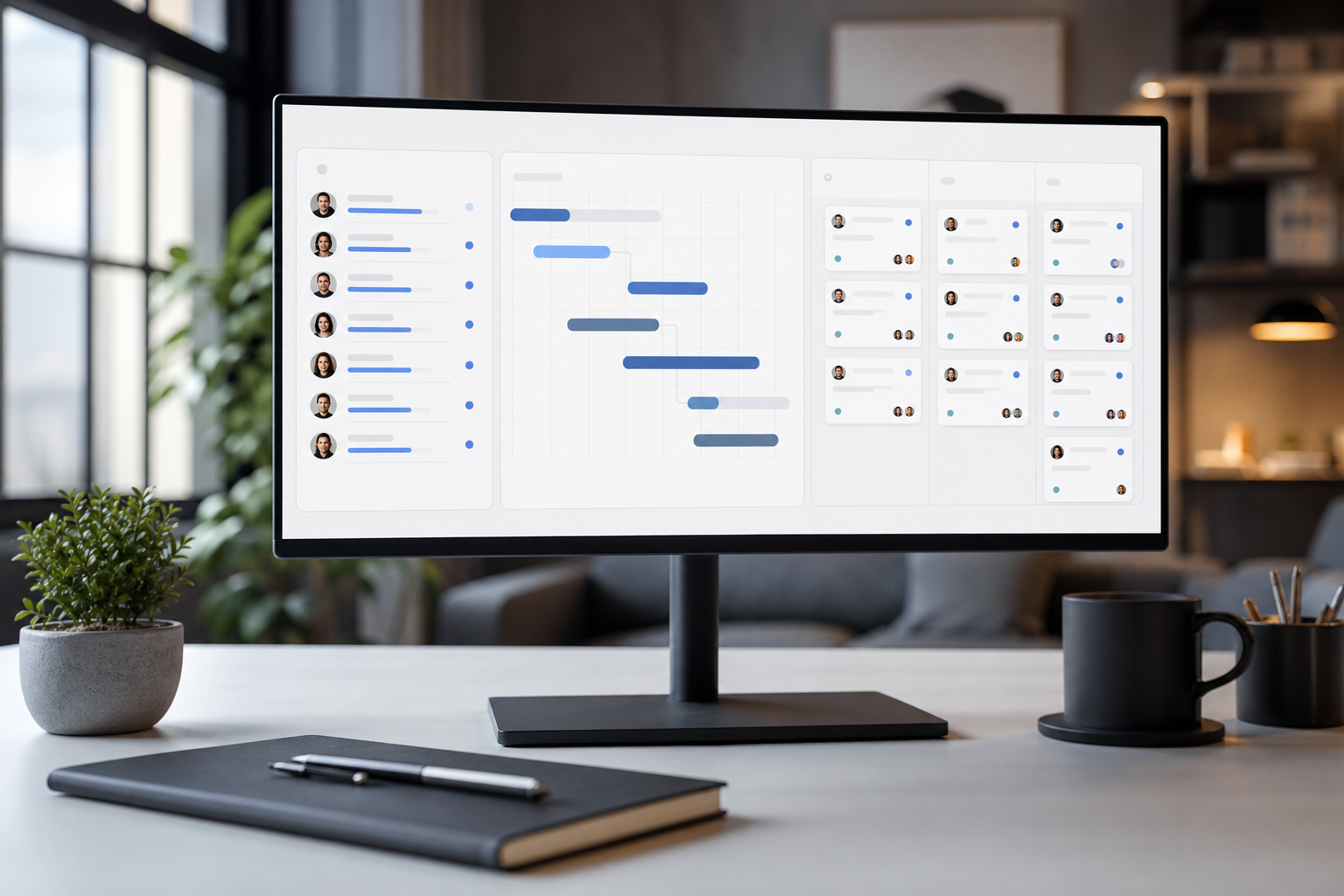
A project planning template is a ready-made layout that helps you capture scope, tasks, owners, dates, and risks the same way every time. It could be a simple spreadsheet, a Kanban board, a Work Breakdown Structure (WBS), or a Gantt chart. The point is not the format. It’s the shared language your team uses to plan and steer the work.
Without that shared structure, three problems hit, in this order: scope creep, miscommunication, and missed deadlines. First, new work sneaks in because no one sees the edges. Next, teams talk past each other because tasks, terms, and dates live in different places. Finally, dates slip because no one can see the pileups until they’re already here.
- Scope creep: Work expands beyond the agreed goal because the scope is not visible.
- Miscommunication: Teams don’t share the same plan, so updates and handoffs miss.
- Missed deadlines: Blockers appear late because dependencies aren’t mapped.
For example, I once coached a five-page website build. No template. The copywriter thought the “blog” was out of scope. The designer assumed three hero options.
Meanwhile, the developer didn’t know the CMS was custom. Two weeks later, the client asked for a pricing page. No one could say “no” because nothing pinned the scope. A basic template with a deliverables list, owners, and a change log would have saved four weeks of churn.
Therefore, use project planning templates to make the plan visible and agreed. The template becomes your single source of truth. As a result, you cut debates, catch risks early, and keep dates real.
“If it’s not in the plan, it’s a request — not a requirement.”
Moreover, templates reduce the mental load on you. You don’t start from scratch. You fill fields, not blank pages. That’s how you gain speed and still keep control.
Also Read!
How to Access and Use CityTime Login for Time and Attendance Tracking
How to Choose and Customize a Project Planning Template in 6 Steps
You want a template that fits your work, not a museum piece. Follow these six steps to tailor the right level of detail and keep your plan useful day to day.
Step 1: Pick your project method (waterfall, agile, or hybrid)
- Waterfall: You have stable scope and clear phases (discovery → design → build → test → launch). A Gantt chart works well to show sequence.
- Agile: You need short cycles, fast feedback, and changing scope. A Kanban or scrum board fits better.
- Hybrid: Use waterfall for milestones and agile for delivery. Many teams do this for websites and internal tools.
For context, a Gantt chart shows tasks across time with bars and links, which is great for dependencies. On the other hand, a Kanban board is ideal for flow and work-in-progress limits.
Step 2: List every deliverable before you add tasks
Write the outputs first: pages, features, screens, documents, and approvals. Then, break each into tasks. This keeps the focus on results, not busywork. For example, “Homepage v1 copy approved” is a deliverable. “Draft H1 options” is a task under it.
Step 3: Choose your format (Gantt, Kanban, WBS, or timeline)
- Use a WBS when you need to show the full scope tree. Link it to either a Gantt or a Kanban board.
- A timeline works for short efforts (two to four weeks) where dependencies are light.
- Use a hybrid view if your tool lets you switch between Gantt and board.
For a primer on the structure, see Work breakdown structure.
Step 4: Assign owners, dates, and planned hours
Add one clear owner per task, with a planned start, due date, and a planned hour estimate. Avoid shared owners. Shared tasks hide the real blocker. If two teams work on one item, split it.
Step 5: Add dependencies and check critical path
Mark tasks that can’t start until a prior one ends. Then scan the longest path from start to finish. That’s your schedule risk. Shift work to reduce long chains where you can.
Step 6: Set a review cadence and an update rule
Agree on when you’ll review the plan: daily standups for boards, weekly reviews for Gantt. Also agree on how you’ll update: owner updates status; project lead updates dates and scope changes. Write this rule in the template’s first tab or top card so no one forgets.

Template Types vs. Project Sizes
| Template Type | Best For | Project Size | Why It Works |
|---|---|---|---|
| Simple Timeline (Sheet) | Events, sprints | Small (1–2 weeks) | Fast to set up; no overhead |
| Kanban Board | Feature work, ops | Small–Medium | Clear flow; easy WIP control |
| WBS + Board | New product MVPs | Medium | Scope clarity + agile delivery |
| Gantt Chart | Cross-team launches | Medium–Large | Shows sequence and dependencies |
| Hybrid (WBS + Gantt + Board) | Complex programs | Large (3+ teams) | Executive view + team view |
As you use project planning templates, keep the format light for small work and add structure as complexity grows. Therefore, match the tool to the risk, not to a trend.
5 Common Mistakes People Make With Project Planning Templates
You can have the right template and still drift. Here are five mistakes I see on real teams, with fixes you can apply today.
Mistake 1: Using a template without customizing it
Fix: Strip it down. Delete fields no one will fill. Rename columns in your team’s words. For example, change “Predecessors” to “Blocked by” if that clicks faster. As a result, your team will engage because the template feels like theirs.
Mistake 2: Overcomplicating small projects
Fix: For a two-week sprint or a three-page site, skip the Gantt. Use a one-page deliverables list with owners, dates, and a simple status (Not Started, In Progress, Review, Done). Then, add a change log at the bottom. You’ll save time and still keep control.
Mistake 3: No accountability column
Fix: Add “Single Owner” as a required field. Moreover, add a “Reviewer” only where quality needs it. Shared ownership kills momentum.
One name owns the task. The reviewer checks the result. That’s it.
Mistake 4: Ignoring time tracking
Fix: Add a “Planned Hours” column next to “Actual Hours.” Then review the gap each week. Therefore, you’ll catch scope drift or underestimates early and adjust capacity rather than miss dates. This is the fastest way to improve estimates month to month.
Mistake 5: Never updating the plan after kickoff
Fix: Set a recurring 20-minute plan review. On boards, do this at the end of standup. On Gantt, do it before your weekly status note.
Update dates, mark risks, and note changes. If the plan changes, the template must change. Otherwise, it’s theater, not management.
As you use project planning templates, add only the fields you will keep current. The best template is the one your team updates without a nudge.
Also Read!
Tools and Resources for Project Planning Templates
You can plan in free tools or in dedicated platforms. The right choice depends on your project’s size, your team’s habits, and how close you want planning to be to execution.
- Free options: Google Sheets, Microsoft Excel, Notion, and Airtable all work well for small to mid-size projects. Pros: zero extra cost, fast to start, flexible. Cons: you’ll build views by hand, and it’s easy to drift without guardrails.
- Dedicated PM tools: Asana, Monday.com, and Trello provide boards, timelines, and automations out of the box. Pros: faster ramp for non-PM teammates, built-in notifications. Cons: you may need paid tiers for Gantt or custom fields, and it’s easy to add noise with too many rules.
For formats, a quick read of Kanban can help you choose between flow-based and date-based planning. In addition, a short scan of Critical path method will sharpen your sense of schedule risk on Gantt plans.
Importantly, your template gets better when you compare planned hours to actual work.
- Automatic time tracking across apps and URLs
- Task and project management views to group work
- Productivity calculation that flags idle time
- A real-time dashboard for leaders and teams
“EmpMonitor does one thing really well: it saves us time!” — Education Career Counsellor
As social proof, EmpMonitor is used by 15,000+ companies across 100+ countries and tracks over 500,000 employees. It’s also GDPR compliant and offers a Free 15-day trial, so you can test without risk. Used well, that data helps you spot tasks that always run long, rebalance workloads, and set dates you actually hit.
For free templates you can download and adapt, start with:
- Google Sheets Template Gallery (search in Sheets)
- Microsoft Office templates for Excel (search in Excel)
- Notion Template Gallery (search in Notion)
These sources let you grab a base and tweak it in minutes. Then, as your needs grow in 2026, you can move to a board or Gantt without losing the structure you built.
**Try time tracking with your plan →
What to Do Next: Put Your Template to Work This Week
You’ll only know if a template works once it’s used. Pick one real project this week and build a plan in under 30 minutes. Keep it light the first time. Aim for clarity, not perfection.
- Choose your format: for a two-week effort, start with a one-page deliverables sheet; for a six-week launch, pick a simple Gantt.
- List deliverables first. Then add tasks under each. Add one owner and a due date per task.
- Add dependencies where they exist. Don’t over-map.
- Estimate planned hours for the top five tasks.
- Share the plan with your team and ask, “What’s missing? What feels risky?” Give them 24 hours to comment.
- Book a 20-minute weekly review through the end date. Protect that time.
As you use project planning templates across your team, keep the feedback loop tight. For example, if actual hours exceed planned by 30% on two weeks in a row, adjust the next sprint’s scope by the same amount. Moreover, carry those learnings into your next estimate. That’s how plans go from “nice doc” to “how we work.
Remember, the best template is the one your team updates. If you see drift, simplify. When people are guessing at status, add one field that clarifies. If you can’t see who is stuck, add a “Blocked by” note. Small tweaks, applied weekly, make a big difference.
**Get your plan working today →

Key Takeaways
- Start with outcomes. List deliverables before tasks, then assign one owner, a date, and planned hours.
- Match format to risk. Use boards for flow, Gantt for sequence, and hybrids for larger 2026 programs.
- Make the plan a habit. Set a weekly 20-minute review and update dates, risks, and actuals.
- Track time vs. plan. Compare planned and actual hours to fix estimates and prevent late surprises.
- Use project planning templates as a shared language, not a rigid rulebook.
Tools and Resources Cited
- Gantt chart basics
- Work breakdown structure
- Kanban for development
- Critical path method