


It’s 8:55 a.m., your shift starts at 9, and CityTime won’t load. This guide shows you how to access use citytime login, fix the common blockers, and submit your time on schedule. To sign in, use your agency-issued credentials on the official NYC portal, complete multi-factor prompts, and connect through the city network or your approved remote VPN. If you see errors, check your VPN and MFA first, clear site data, and contact your timekeeper or the FISA-OPA help desk with the exact message and timestamp. You’ll find step-by-step help below and practical fixes that work in 2026.

What Is CityTime and How Does Its Login Work?
CityTime is New York City’s web-based time and attendance system. You use it to record your hours, request leave, view accruals, and route timesheets for approval. Supervisors and timekeepers use it to review, correct, and approve time, and to ensure payroll is accurate. In short, it’s the system of record for when you worked and what leave you took.
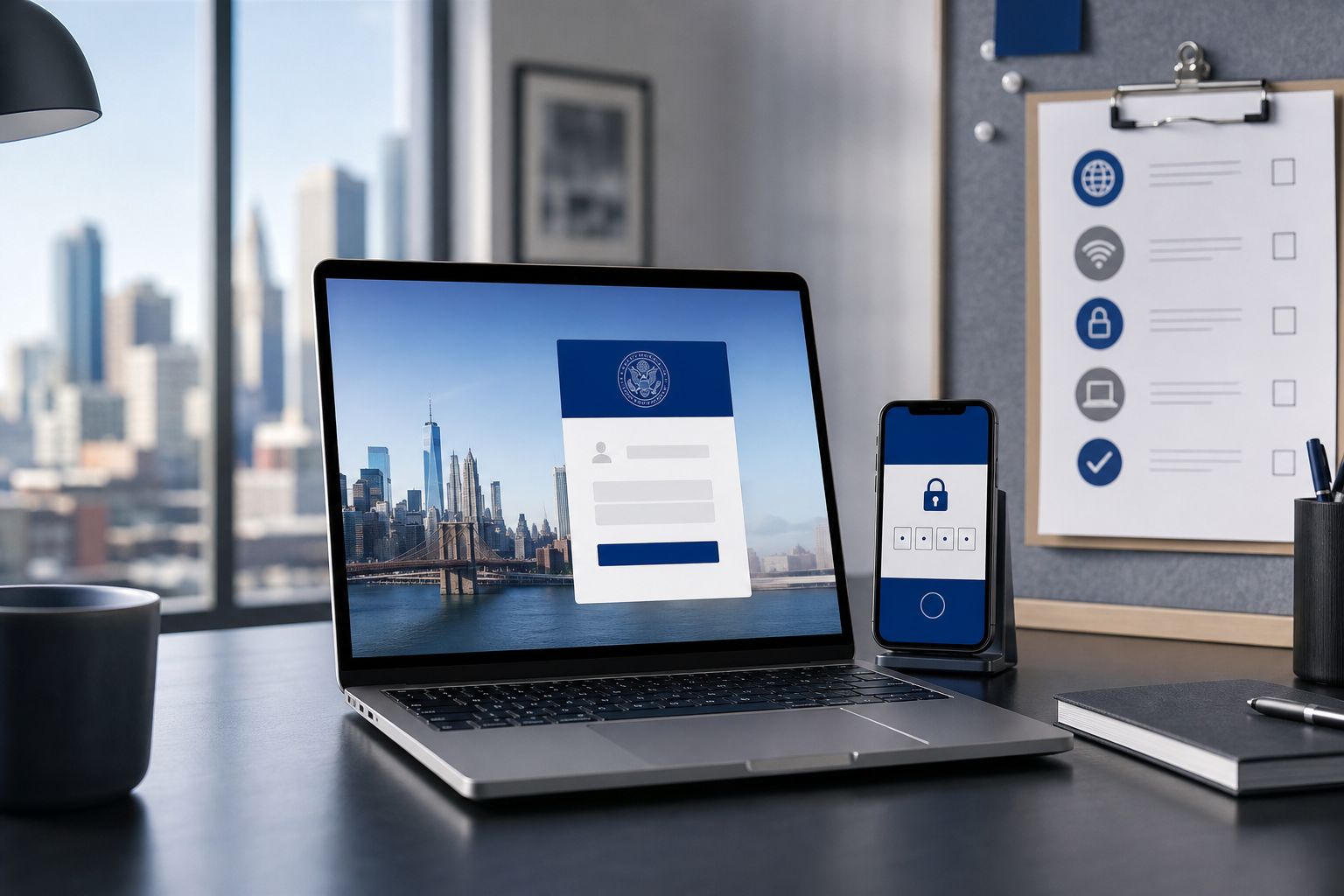
Because it handles pay-impacting data, CityTime login follows strict security steps. You’ll sign in with your agency-assigned user ID and password. Then, you may be prompted for multi-factor authentication (MFA) or to re-verify your identity during sensitive actions. For a quick primer on the concept, see multi-factor authentication (MFA).
Importantly, the official login runs on a.gov domain and may be tied to the NYC network. On-site staff usually connect over the city network. Remote users connect with an approved VPN, then sign in through the same portal. If you’re unsure of the exact login page, ask your timekeeper. Do not use links from search engines or third-party sites.
Who uses CityTime?
CityTime serves several groups across NYC agencies. Frontline and administrative city employees use it to enter hours and submit timesheets on schedule. Supervisors rely on it to review entries and provide timely approvals. Agency timekeepers and payroll or HR teams handle exceptions, corrections, and audits to keep attendance and leave usage accurate.
Access requirements you must meet
To access use citytime login, you must be on the active city network or connected through an approved VPN if you’re remote. You’ll need a current agency-issued user ID and password, and in many agencies, a registered MFA device or method to complete the second factor. A supported browser such as Chrome or Edge is required, and you should allow pop-ups for the portal so security prompts and windows display correctly. Meeting these basics helps you avoid unnecessary lockouts and failed sessions.
If you’re new or returning from leave, your access may not be provisioned yet. In that case, contact your timekeeper to confirm your account status before you try to access use citytime login again.
Step-by-Step Guide to Logging Into CityTime
Follow these steps to prevent the most common login loops. Read them top to bottom the first time, then use the quick notes for on-network vs. remote access.
Step-by-step sign-in
- Confirm the official link: Ask your timekeeper for the correct.gov login URL. Bookmark it. Avoid third-party shortcuts.
- On-site: Plug in or join the secure city Wi‑Fi as required.
- Remote: Launch your approved VPN and wait for “Connected” before you open the browser.
- Open a supported browser: Use Chrome or Edge. Close extra tabs. If you previously had errors, open a fresh window or Incognito/Private mode.
- Go to the CityTime portal: Type or paste the official URL. Check the padlock icon and.gov domain before you enter anything.
- Enter credentials: Type your user ID and password. Watch for keyboard layout issues (Caps Lock, Num Lock, language input).
- Complete MFA or security prompts: Approve the push, enter a one-time code, or answer the security prompt. If your code fails, request a fresh one and try again.
- Handle any trust or certificate prompts: Allow pop-ups for the portal if prompted. Do not accept warnings on non-.gov sites.
- Access the dashboard: After sign-in, you should see timesheet options, leave balances, and your current pay period. If you see a blank page, refresh once. If it still fails, sign out and in again.
- Sign out when done: Use the Sign Out link. Fully close your browser if you’re on a shared device.
Tip: If you get stuck between steps, note the exact message and timestamp. That note speeds up support by a lot.
On-network vs. remote access at a glance
- On-network: No VPN. Go straight to the portal and sign in.
- Remote: Connect VPN first, then open the browser and proceed to login. If VPN drops, CityTime can time out or block the session.
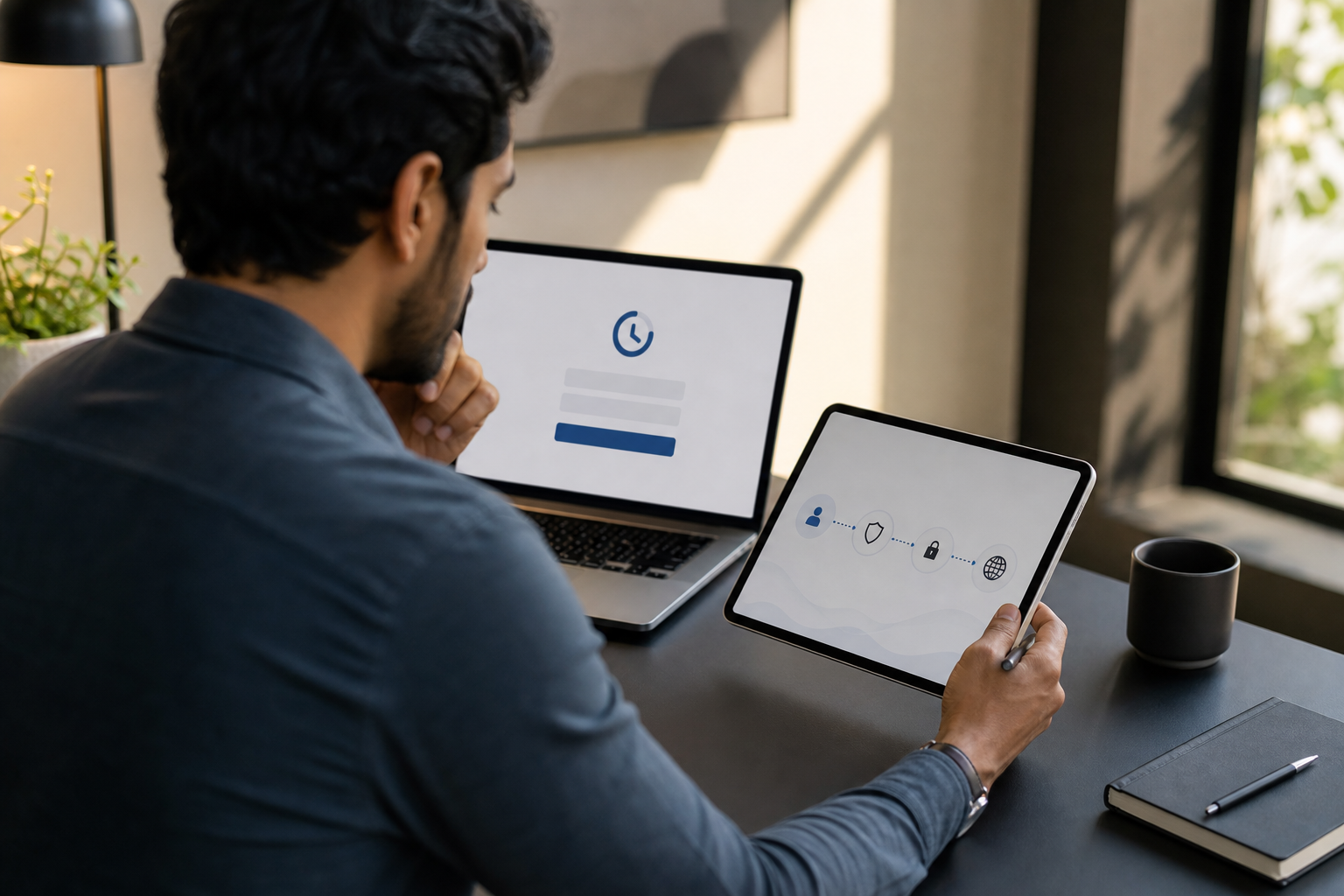
If your agency changed MFA in 2026, you may see a new prompt screen. Follow the on-screen instructions, then try to access use citytime login again through your saved bookmark.
Also Read!
Common CityTime Login Errors and How to Fix Them
Even small issues, like a stale VPN tunnel, can block access. Work through these fixes from most to least likely.
Locked account
If you see an “Account locked” or “Too many failed attempts” message, your account has been temporarily secured. Wait out the lockout period if you’re instructed to do so. After that, reset your password through your agency’s self-service portal or call your timekeeper to unlock the account. Avoid retrying the same wrong password, which can extend the lockout.
Forgotten password or expired password
An “Invalid credentials” error when you know the user ID usually points to a bad or expired password. Use your official password reset method to create a new one, or call your timekeeper if you don’t have self-service. Once reset, sign out everywhere, close the browser, and start a fresh session before trying again. This clears old tokens that can keep causing the same error.
MFA fails or device lost
When MFA codes are rejected or you never receive a prompt, the factor is likely out of sync or misconfigured. Request a new code and make sure your phone’s time is set automatically so time-based tokens align. If your phone is lost or replaced, ask your timekeeper to add a backup factor or re-enroll your device. For general background, see multi-factor authentication once; it explains why time-based codes can drift.
VPN not connected (remote work)
If the portal loads partially and then errors, or you see a “Not authorized” message, your VPN may not be active. Disconnect and reconnect, and wait for a clear “Connected” status before opening the portal. With split tunneling disabled, close non-work apps that may compete for the connection. Starting clean often resolves authorization and routing issues.
Browser issues and stale cache
A spinning login, a blank screen after MFA, or an instant “Your session has expired” typically points to cache or cookie problems. Clear site cookies for the portal’s domain and try an Incognito/Private window to confirm. If that works, clear your cache for today and sign in again for a longer-lasting fix. As a quick fallback, try the other supported browser (Edge or Chrome).
Session expired or idle timeout
Seeing “Session expired” after stepping away usually means the security timeout triggered. Save your work often and plan entries in smaller batches to avoid losing progress. When the timeout occurs, simply sign in again to continue. This behavior is expected and protects sensitive time and payroll data.
Account disabled or not provisioned
“User not found” or “Contact administrator” errors can indicate your account isn’t active or fully set up. Ask your timekeeper to confirm your current employment status and role assignment in CityTime. New hires, transfers, and employees returning from leave often need updates before access works. Once provisioned correctly, you should be able to access use citytime login without errors.
Quick checklist before you escalate
- Check VPN status (if remote)
- Confirm you used the official.
- Clear site cookies or try Private/Incognito
- Retry MFA with a fresh code
- Capture the exact error text and time
If nothing works, include those notes when you contact support. It reduces back-and-forth and speeds resolution.
Also Read!
Healthcare Guide to Employee Time Tracking: How to Choose and Implement the Right System
Tools and Alternatives for Employee Time and Attendance Tracking
CityTime is built for NYC agencies. However, organizations outside the city workforce use other platforms to track time, manage shifts, and see live status.
Widely used options beyond CityTime
Many large operations choose Kronos (UKG) for its strong workforce scheduling alongside time tracking. ADP is popular where integrated payroll and time management are needed, especially for mixed-hour teams. Some organizations prefer tools like EmpMonitor that combine automated time tracking, attendance, a real-time dashboard, and productivity measurement in one platform. Your choice depends on whether you prioritize scheduling power, payroll integration, or granular productivity analytics.
One option, EmpMonitor, is GDPR compliant and is used in 100+ countries by 15,000+ companies while tracking over 500,000 employees. According to the brand’s published results, 76% of businesses rely on EmpMonitor for a smooth management process. That scope matters if you need consistent reports across teams or geographies. It also helps when your IT team audits user activity or needs security guardrails.
“Simplified the management of the entire workforce by 80% in terms of workforce, time, and effort.” — Ashwin Kumar, Chief Project Coordinator
Moreover, EmpMonitor includes advanced analytics and custom reports, so you can spot trends and fix issues faster. You can keep private time for sensitive tasks, set roles and permissions, and get alerts or auto email reports when something drifts.
If your agency requires CityTime, stick with it as the official system of record, and use other tools only for supplemental insights. For non-NYC teams, a platform with automated capture and a real-time dashboard can reduce manual entry and lower error rates. When measuring output is important, look for productivity analytics and tunable screenshots that align with your policy. These criteria help you match software capabilities to your compliance needs without overcomplicating daily workflows.
As you vet tools, test how fast you can go from install to first report. Then, check how well it handles remote devices and if it blocks risky apps or USB use.
For research purposes, you can try a pilot while you still access use citytime login for your NYC work. Keep systems separate so records stay clean.
What to Do If You Still Can't Access CityTime
If you still can’t log in, switch from trial-and-error to a simple escalation plan. That saves time for you and your help desk.
Gather proof and context
- Screenshot the error message with the full browser window.
- Note the exact time, your device type, network (on-site or VPN), and the step where it failed (password, MFA, dashboard).
- List what you already tried (VPN reconnect, cache clear, different browser).
Contact the right people in order
-
Your agency timekeeper
Share your notes. Ask them to check your account status, role, and any recent changes (transfer, leave return, supervisor change). -
FISA-OPA help desk
Provide the same notes plus your agency, unit, and any ticket numbers you already have. If there’s a known outage, they can confirm it. -
Supervisor
If you’re near a timesheet deadline, loop in your supervisor so they can plan an interim fix (for example, manual entry by a timekeeper with your sign-off). -
HR or IT (if account-related)
For disabled accounts, name changes, or rehires, HR may need to close the loop in the HRIS before CityTime can grant access.
While you wait
Do not share passwords or MFA codes by email or chat while you troubleshoot. Keep a simple local log of your hours for the day, including start, stop, and breaks, so nothing is lost. If possible, test a second device on the same network to separate device issues from account or network causes. These small steps make it easier to reconcile time once access is restored.
If the issue started after a 2026 MFA update, ask whether your factor enrollment changed. A quick re-enrollment can resolve most post-update login loops. Once resolved, save the official bookmark and confirm you can access use citytime login from both on-network and VPN so you’re set for your next shift.

Key Takeaways
Use only the official.gov portal, complete MFA, and connect via the on-site network or an approved VPN before attempting to sign in. If you hit blank screens or instant “session expired” errors, clear site cookies or try a Private window to reset the session. When locked out or starting a new role, your timekeeper can confirm status, unlock access, or provision your account properly. Keep concise notes with the exact error text, time, network, and steps tried to accelerate help desk troubleshooting. For non-NYC teams, tools like EmpMonitor provide automated tracking, real-time dashboards, and GDPR compliance to simplify time management.
What to Do This Week
- Bookmark your official.gov CityTime link and test access on both on-site and VPN connections.
- Add a backup MFA method so a lost phone won’t block your next login.
- Draft a 1-page “CityTime login checklist” for your team with the steps and contacts above.
- If you manage non-NYC staff, run a short pilot of automated time tracking to compare accuracy and admin time against your current process.